Real-time MIDI processing

Getting Started

Getting Started

Placeholder, placeholder, placeholder, placeholder.

Placeholder, placeholder, placeholder, placeholder.

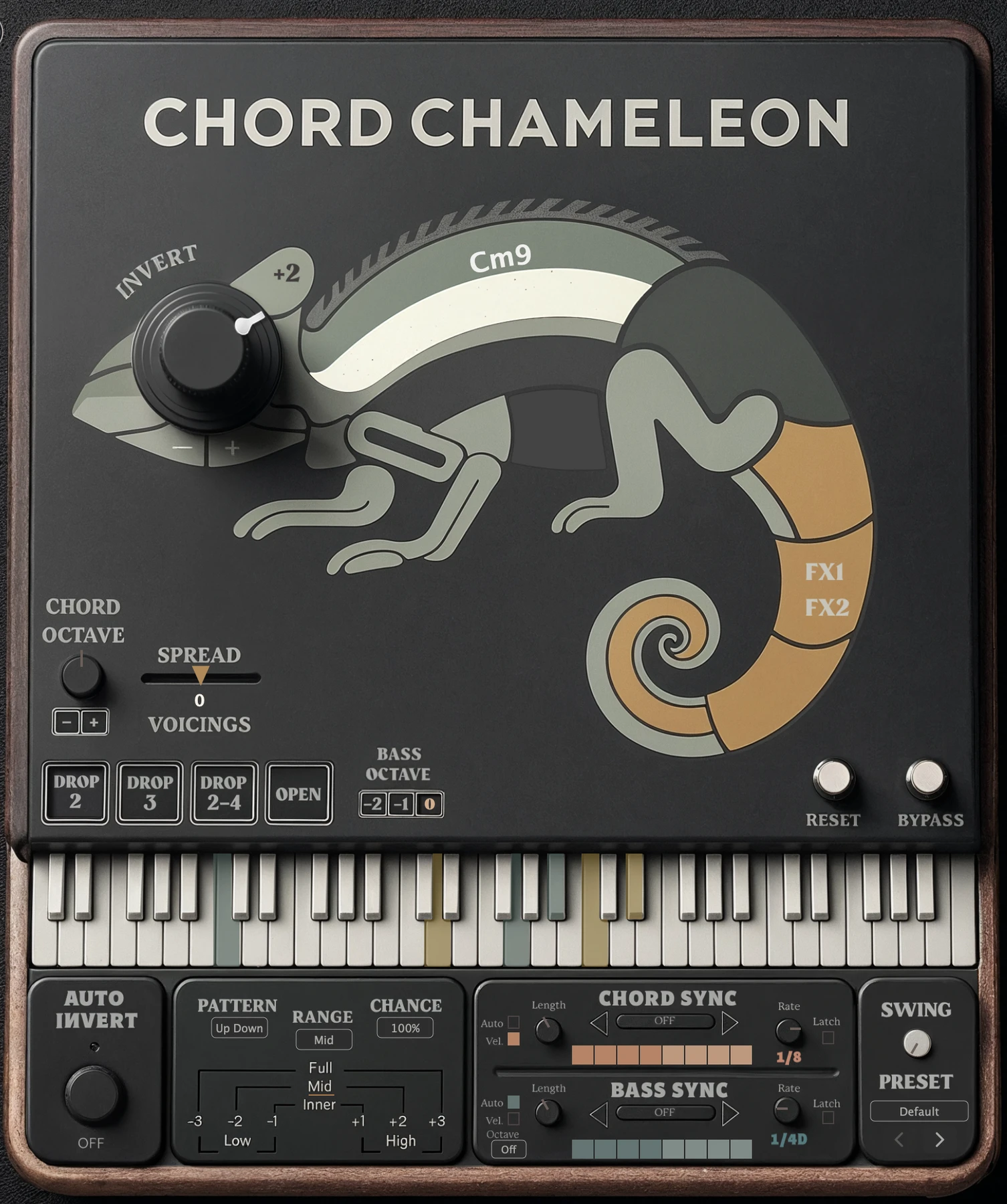
The complete Chord Chameleon interface in its dark theme: the Invert knob set in the chameleon’s eye, voicing buttons, the keyboard, Auto Invert, and the Chord Sync and Bass Sync rows.

Live input or existing MIDI clips

Live input or existing MIDI clips

Processes MIDI before it reaches your instrument

Processes MIDI before it reaches your instrument

No built-in sounds. Your MIDI instrument makes the sound.

No built-in sounds. Your MIDI instrument makes the sound.

Keyboard icon

Chord Chameleon responds to
the way you strike, roll,
and hold notes.

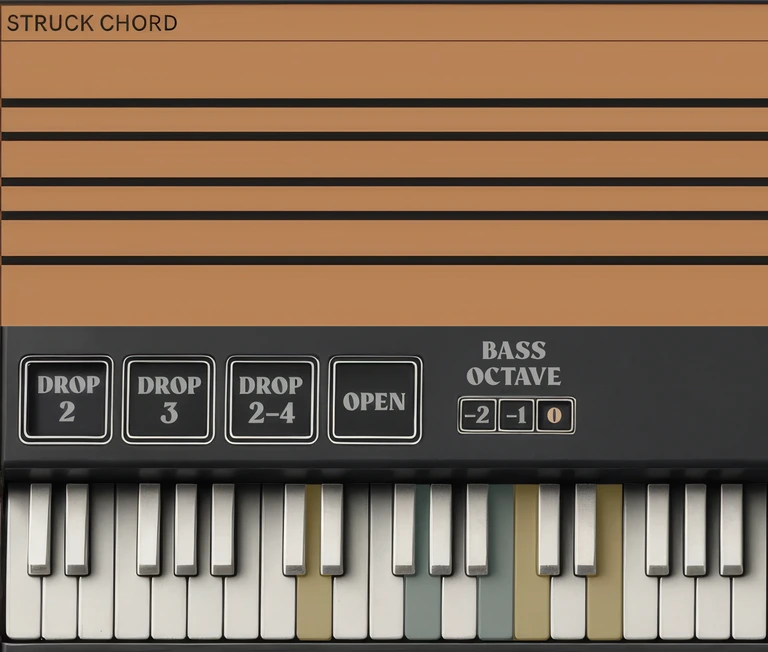
Struck together

Strike a chord to reshape it.

Strike three or more chord notes together and Chord Chameleon applies your selected inversion and voicing.

Chord processed

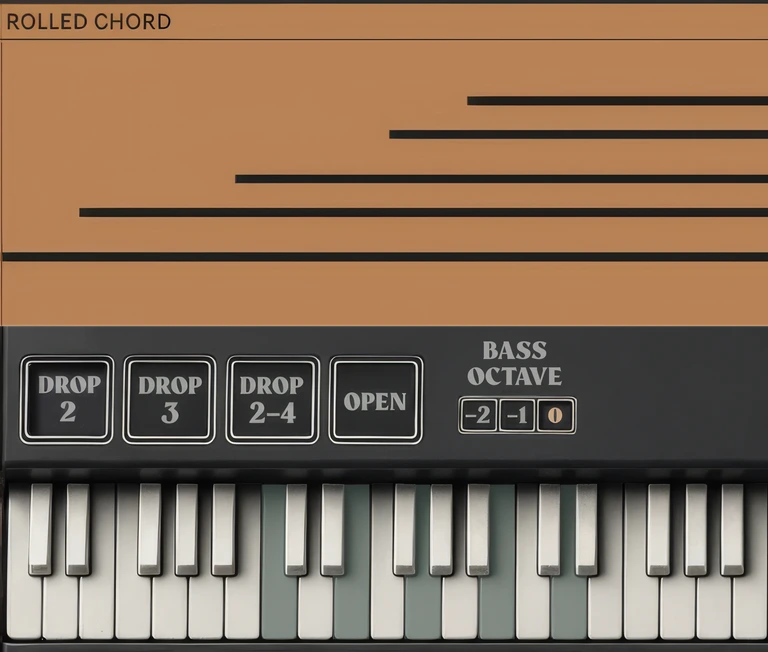
Played one at a time

Roll it, and the notes stay as played.

Play and hold notes one at a time to preserve their original pitches.

Rolled chord

Played one at a time

Roll it, and the notes stay as played.

Play and hold notes one at a time to preserve their original pitches.

Rolled chord

Grace notes

Held notes

Hold a chord, and follow-up notes stay with it.

Once a chord is detected, nearby follow-up notes use its current inversion and voicing while at least one note from the original chord remains held.

01 · Chord detected

01 · Chord detected

01

02 · Follow‑up note

02 · Follow‑up note

02

03 · All released

03 · All released

03

Three or more notes are struck together. The chord is detected and processed.

Three or more notes are struck together. The chord is detected and processed.

01 · Three or more notes are struck together. The chord is detected and processed.

At least one original chord note is still held. A nearby follow-up note uses the chord’s current inversion and voicing.

At least one original chord note is still held. A nearby follow-up note uses the chord’s current inversion and voicing.

02 · One chord note is still held. A nearby follow‑up note takes the chord’s current inversion and voicing.

When the last original chord note is released, the connection ends.

When the last original chord note is released, the connection ends.

03 · When every note from that chord is released, the connection ends.

Different from a rolled chord: a rolled chord is built one note at a time before any chord is detected, so it stays as played.

Real-time MIDI processing
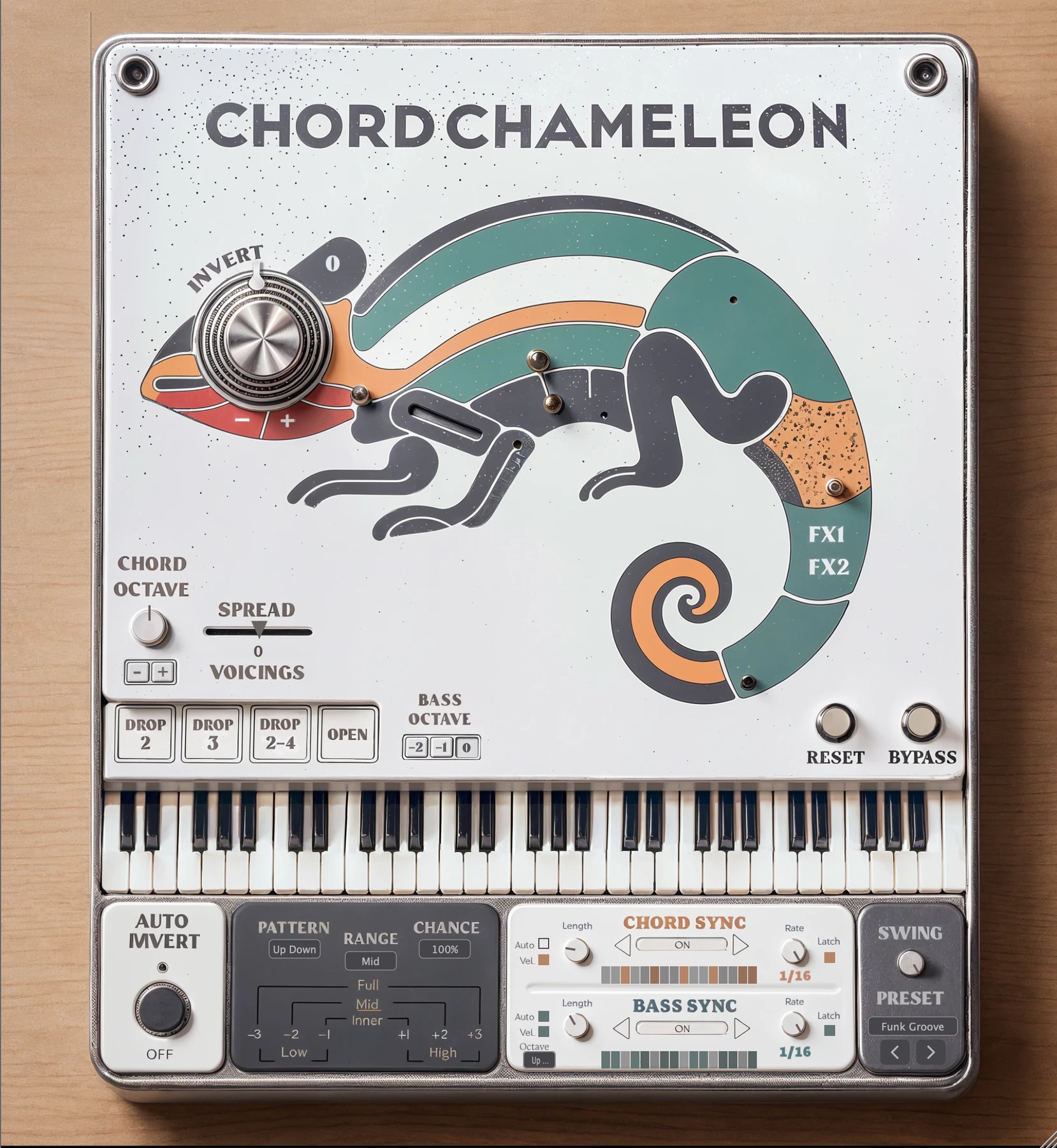
Shapeshift Chords in Real-time.

Shapeshift Chords in Real-time.

Combine chord inversions and voicings with independent chord and bass sequencing. Use separate octave controls, patterns, and loop lengths with live playing or existing MIDI clips.

Combine chord inversions and voicings with independent chord and bass sequencing. Use separate octave controls, patterns, and loop lengths with live playing or existing MIDI clips.

The complete Chord Chameleon interface in its dark theme: the Invert knob set in the chameleon’s eye, voicing buttons, the keyboard, Auto Invert, and the Chord Sync and Bass Sync rows.

Live input or existing MIDI clips

Live input or existing MIDI clips

Processes MIDI before it reaches your instrument

Processes MIDI before it reaches your instrument

No built-in sounds. Your MIDI instrument makes the sound.

No built-in sounds. Your MIDI instrument makes the sound.

Chord Sync · Bass Sync

Transform chords and bass as you play.

Combine chord inversions and voicings with independent chord and bass sequencing. Use separate octave controls, patterns, and loop lengths with live playing or existing MIDI clips.

Chord Sync

Feature 1

Chords follow the Chord Grid.

Bass Sync

Feature 2

Bass notes follow the Bass Grid.

Illustration

Sync both parts, or sync the bass while playing chords freely.

Chord GridSync on1/4
Bass GridSync on1/8

Illustration of the two grids at Rates of 1/4 and 1/8. Not a working plug-in, and no audio.

Four voicing presets

Voicings rearrange the spacing and order of notes within a chord. Spread is a separate control.
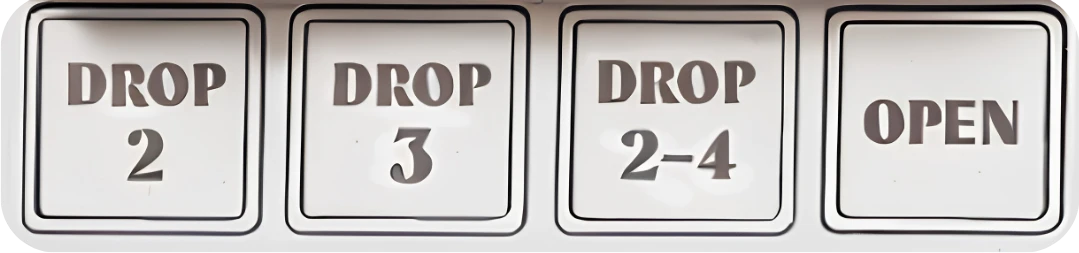
The four voicing buttons on the faceplate: Drop 2, Drop 3, Drop 2-4 and Open.

Drop 2

Lowers the 2nd highest chord note by one octave.

Drop 3

Lowers the 3rd highest chord note by one octave.

Drop 2-4

Lowers the 2nd and 4th highest notes by one octave.

Open

Lowers the highest and 4th highest notes by one octave.

Independent Chord and Bass Sequencing.

01

Chord Sync only

All played notes follow the Chord Grid.

Chord GridRate 1/4
Chords
follow the Chord Grid
Bass
follows the Chord Grid
Chord GridRate 1/4
Chords
follow the Chord Grid
Bass
follows the Chord Grid

02

Chord + Bass Sync

Chords follow the Chord Grid. Bass notes follow the Bass Grid.

Chord GridRate 1/4
Bass GridRate 1/8
Chords
follow the Chord Grid
Bass
follows the Bass Grid

03

Bass Sync only

Bass follows the Bass Grid. Higher notes and chords play freely, with inversions and voicings.

Bass GridRate 1/8
Chords
played freely
Bass
follows the Bass Grid

Play chords over a synced bassline

Illustrations of the three modes, not a working plug‑in. In the plug‑in, click or drag grid squares to choose which steps play.

Different loop lengths. Shared tempo.

Create cross-rhythms with different loop lengths for chords and bass. Each rate remembers its own pattern and loop range.

Chord GridRate 1/8 · loop of 3 steps
Bass GridRate 1/8 · loop of 4 steps

Illustration: a 3‑step chord loop against a 4‑step bass loop at the same rate. Note length is a separate control from loop range.
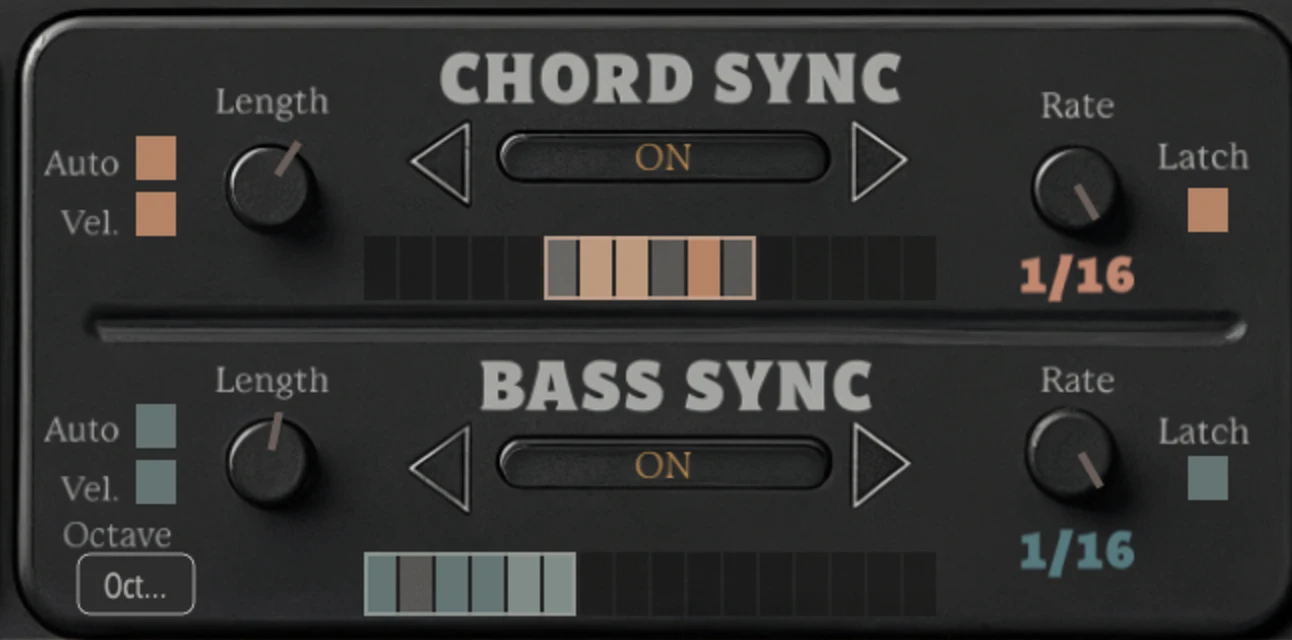
Chord Sync and Bass Sync grids, each showing a separate loop range

From the plug‑in: a separate loop range on each grid.

Presets

Presets for chords and bass together

Start with a preset built around the interaction between chord and bass patterns. Then adjust the grids, rates, loops, and swing.

Auto Bass Octave

Octave movement for the synced bass

Add repeating octave movement to synced bass notes. The main Bass Octave control still sets the bass register separately.

Setup, controls, and examples

MIDI Mappable Chord Inversions

See the sequencing modes, performance examples, and setup instructions in the manual.

Processed chord

Chord notes

inverted and opened

The same keyboard after Invert plus two with the Open voicing: the bass note and the melody note are unchanged, and two of the chord notes have moved and are coloured gold.

Bass note

preserved

Melody note

preserved

Swipe the keyboards sideways to see the bass and melody notes.

Swipe the keyboards sideways to see the bass and melody notes.

Example from the manual. Inversions and voicings apply while the bass and melody notes remain intact.

Example from the manual. Inversions and voicings apply while the bass and melody notes remain intact.

Independent chord and bass sequencing

Chord Sync · Bass Sync

Separate patterns for chords and bass.

Give chords and bass separate patterns, rates, note lengths, and loop ranges.

Sync both parts, or sync the bass while playing chords freely.

Chord Grid

orange, top row

The combined Chord Sync and Bass Sync panel on the plug-in, both rows ON, with the Chord Grid at 1/4 and the Bass Grid at 1/8, dark theme

Bass Grid

teal, bottom row

01

Chord Sync only

All played notes follow the Chord Grid.

Chord GridRate 1/4
Chords
follow the Chord Grid
Bass
follows the Chord Grid
Chord GridRate 1/4
Chords
follow the Chord Grid
Bass
follows the Chord Grid

02

Chord + Bass Sync

Chords follow the Chord Grid. Bass notes follow the Bass Grid.

Chord GridRate 1/4
Bass GridRate 1/8
Chords
follow the Chord Grid
Bass
follows the Bass Grid

03

Bass Sync only

Bass follows the Bass Grid. Higher notes and chords play freely, with inversions and voicings.

Bass GridRate 1/8
Chords
played freely
Bass
follows the Bass Grid

Play chords over a synced bassline

Illustrations of the three modes, not a working plug‑in. In the plug‑in, click or drag grid squares to choose which steps play.

Different loop lengths. Shared tempo.

Create cross-rhythms with different loop lengths for chords and bass. Each rate remembers its own pattern and loop range.

Chord GridRate 1/8 · loop of 3 steps
Bass GridRate 1/8 · loop of 4 steps

Illustration: a 3‑step chord loop against a 4‑step bass loop at the same rate. Note length is a separate control from loop range.

Chord Sync and Bass Sync grids, each showing a separate loop range

From the plug‑in: a separate loop range on each grid.

Presets

Presets for chords and bass together

Start with a preset built around the interaction between chord and bass patterns. Then adjust the grids, rates, loops, and swing.

Auto Bass Octave

Octave movement for the synced bass

Add repeating octave movement to synced bass notes. The main Bass Octave control still sets the bass register separately.

Bass Sync only

Bass Sync only

Bass Sync on · Chord Sync off

Bass Sync on · Chord Sync off

Play chords over a synced bassline.

Turn on Bass Sync and leave Chord Sync off. The bass follows its pattern while higher notes and chords play freely, with inversions and voicings.

01

Turn Bass Sync on

02

Leave Chord Sync off

03

Hold a bass note and play chords above it
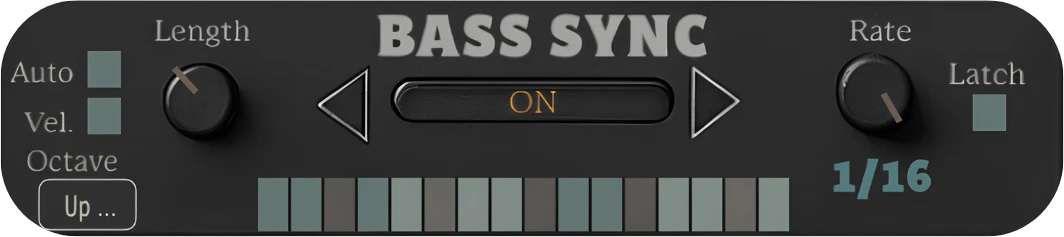
The Bass Sync row and its step grid on the plug-in
Bass GridRate 1/16
Chords
played freely
Bass
follows the Bass Grid

Illustration, not a working plug‑in. Bass Octave and Auto Bass Octave can shape the synced bass further.

Live input or existing MIDI

Live input or existing MIDI

Apply the controls to a keyboard performance or MIDI notes already in your track. Chord Chameleon processes the notes before they reach your instrument.

Apply the controls to a keyboard performance or MIDI notes already in your track. Chord Chameleon processes the notes before they reach your instrument.

Keyboard icon in a circle.

Your playing

Play live, or use existing MIDI from the track.

MIDI file icon.

MIDI in

Notes arrive as MIDI, from the keyboard or a clip.

Chord Chameleon circular logo.

Chord Chameleon

Processes chords and bass notes independently, in real time.

Speaker icon in a circle.

Your instrument

Plays the transformed notes. Chord Chameleon has no built-in sounds.

Explore Chord Chameleon.

Find setup instructions, control descriptions, and performance examples in the manual.

Chords

The Chord Sync row on the plug-in.

Chords

The Chord Sync row on the plug-in.

Bass

The Bass Sync row on the plug-in.

Bass

The Bass Sync row on the plug-in.

What it does

What it does

(10) · all in the manual

(10) · all in the manual

Nº

Nº

Control

Control

Summary

Summary

Part

Part

01

Chord inversions

Select the inversion for your next chord without changing the notes you are already holding.

Select the inversion for your next chord without changing the notes you are already holding.

Chord

Chord

02

Voicing presets

Voicing presets

Drop 2, Drop 3, Drop 2‑4, or Open, alongside your chosen inversion.

Drop 2, Drop 3, Drop 2‑4, or Open, alongside your chosen inversion.

Chord

Chord

03

Spread

Spread

Tighten or widen the spacing between chord notes.

Tighten or widen the spacing between chord notes.

Chord

Chord

04

Auto Invert

Auto Invert

Steps through inversions as you play; choose the pattern, the range, and how often the inversion changes.

Steps through inversions as you play; choose the pattern, the range, and how often the inversion changes.

Chord

Chord

05

Chord Octave and Bass Octave

Chord Octave and Bass Octave

Set chord and bass octaves separately.

Set chord and bass octaves separately.

Both

Both

06

Bass and melody separation

Bass and melody separation

Inversions and voicings apply to the chord; bass and melody notes outside the chord stay where you played them.

Inversions and voicings apply to the chord; bass and melody notes outside the chord stay where you played them.

Both

Both

07

Chord Sync and Bass Sync

Chord Sync and Bass Sync

Separate patterns, rates, note lengths, and loop ranges for chords and bass.

Separate patterns, rates, note lengths, and loop ranges for chords and bass.

Both

Both

08

Auto Bass Octave

Auto Bass Octave

Add repeating octave movement to synced bass notes.

Add repeating octave movement to synced bass notes.

Bass

Bass

09

SYNC presets

SYNC presets

Coordinated chord and bass SYNC settings to start from, then adjust.

Coordinated chord and bass SYNC settings to start from, then adjust.

Both

Both

10

MIDI mapping

MIDI mapping

Map performance controls to MIDI hardware or automate them in your DAW.

Map performance controls to MIDI hardware or automate them in your DAW.

Both

Both

Before you start

Practical questions

Setup steps, control descriptions, and performance examples are in the manual.

No. Chord Chameleon processes incoming chords rather than generating them from single-note triggers. The notes can come from your playing or an existing MIDI clip.

Setup, controls, and examples

Explore the chord and bass controls.

See the sequencing modes, performance examples, and setup instructions in the manual.

Chord Octave · Bass Octave

Separate chord and bass octaves

Separate chord and bass octaves

Chord and bass octaves move separately, so the bass can be adjusted without changing the chord.

Chord and bass octaves move separately, so the bass can be adjusted without changing the chord.

From the plug-in

Close crop of the dark faceplate: the Chord Octave knob with minus and plus buttons at the top left, the Spread slider above the four voicing buttons, and the Bass Octave buttons minus two, minus one and zero at the bottom right.

Chord Octave

Shifts the current chord by octave.

Bass Octave

Adjusts bass notes by octave.

Chord Octave

Knob with − and + buttons.

Bass Octave

Buttons −2, −1 and 0.

Auto Bass Octave

Repeating octave movement for synced bass notes, set from the Octave menu in Bass Sync.

Chord inversions

Select now. Hear it on the next chord.

Select now. Hear it on the next chord.

Select the inversion for your next chord without changing the notes you are already holding.

Select the inversion for your next chord without changing the notes you are already holding.

01

01

Hold a chord

The notes you are holding stay exactly as they are.

02

02

Select an inversion

Turn the Invert dial. Nothing you are holding moves.

03

03

Play the next chord

The new chord arrives with the selected inversion and voicing.

Figure from the manual, headed Live Chord Input: four keyboards labelled Root Position, 1st Inversion, 2nd Inversion and 3rd Inversion, each beside a Chord Inversion setting of 0, plus 1, plus 2 and plus 3. Coloured lines trace each note that moves up an octave from one setting to the next.

From the manual: the same chord after each inversion setting, with the shifted notes colour-coded.

The bass part

Bass notes outside the chord stay where you played them.

Bass notes outside the chord stay where you played them.

Bass Octave, Bass Sync and the Auto Bass Octave patterns are separate bass controls.

Bass & melody separation in the manual

Bass Sync

Fluid bass movement

Fluid bass movement

When Bass Sync is ON, you can pivot to a new bass note without fully releasing the previous bass note.

When Bass Sync is ON, you can pivot to a new bass note without fully releasing the previous bass note.

Illustration

Bass Sync ON

Bass note held

Bass note held

New bass note

New bass note

Synced bass rhythm

Synced bass rhythm

follows the new note

Time

Both bass notes held

Bass Sync can follow a newly played bass note while the previous bass note is still held, keeping the bass rhythm locked to tempo without a full release between notes.

Bass Sync can follow a newly played bass note while the previous bass note is still held, keeping the bass rhythm locked to tempo without a full release between notes.

Illustration of the timing idea. Not a working plug-in, and no audio.

Illustration of the timing idea. Not a working plug-in, and no audio.

A MIDI effect for chords and bass

A MIDI effect for chords and bass

Reshape the chords
you play in real time.

Reshape the chords you play in real time.

Reshape the chords you play in real time.

Chord Chameleon transforms the chords you play without replacing the act of playing them. Apply inversions and voicings, with independent octave controls and tempo‑synced patterns for chords and bass.

Play live or process existing MIDI clips.

Inversions

Voicings and Spread

Chord and bass octaves

Chord Sync and Bass Sync

The complete Chord Chameleon interface in its Light theme: the Invert dial set in the chameleon’s eye, Chord Octave, Spread and the four voicing buttons, Bass Octave, the keyboard, and the Auto Invert, Chord Sync, Bass Sync, Swing and Preset panels

Live input

Existing MIDI clips

No built‑in sounds

Mappable in your DAW