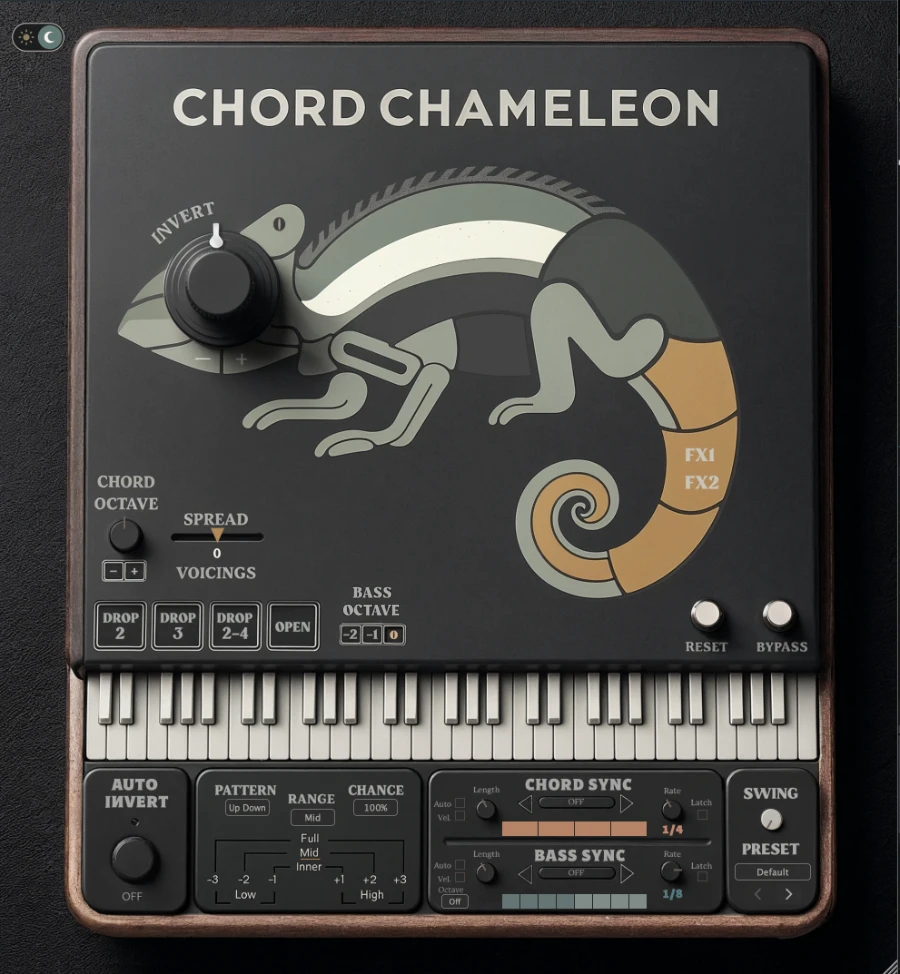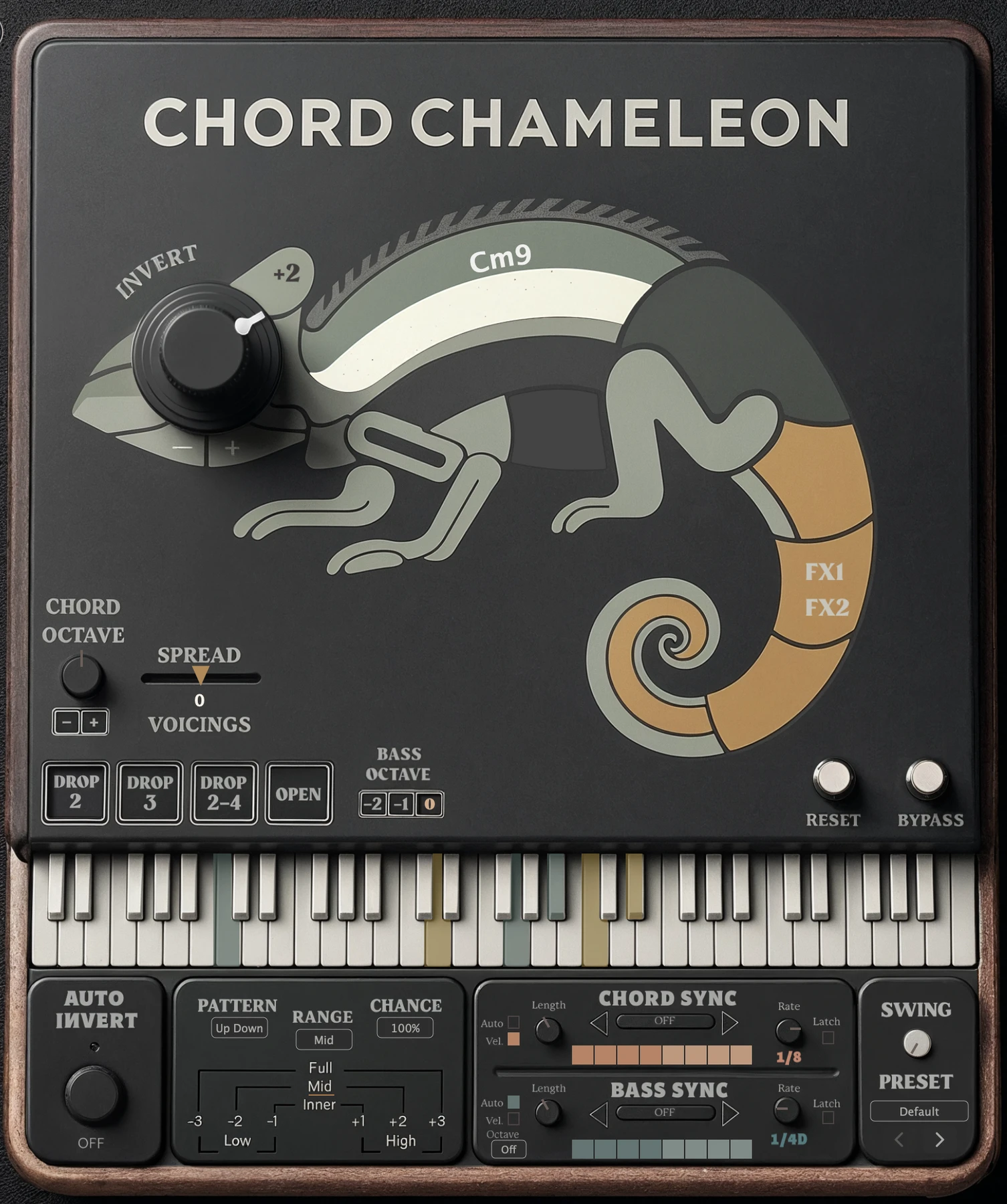
Chord Chameleon applies inversions to incoming chords in real time and color-codes the shifted notes for each setting.
FROM THE PLUG-IN

Rotate the chameleon’s eye to cycle through inversion settings.
Computer keyboard tip: Click the Invert dial, then use the Left and Right arrow keys to step through inversion settings.
The selected inversion applies as soon as a new chord is played, allowing you to preselect changes without disrupting notes that are currently held.
Inversions occur when a chord’s upper or lower notes are shifted one octave
DIAGRAM

FROM THE PLUG-IN
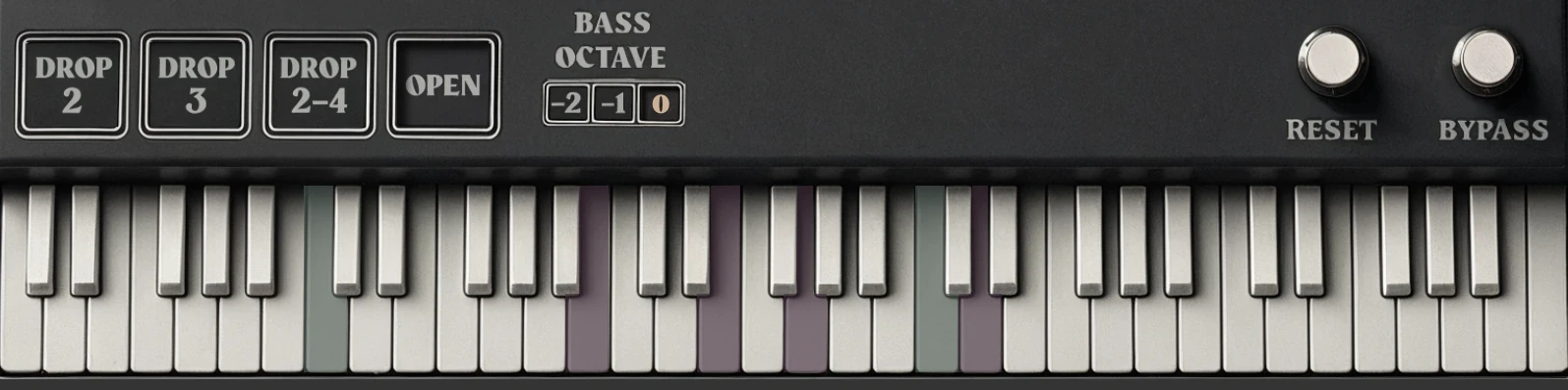
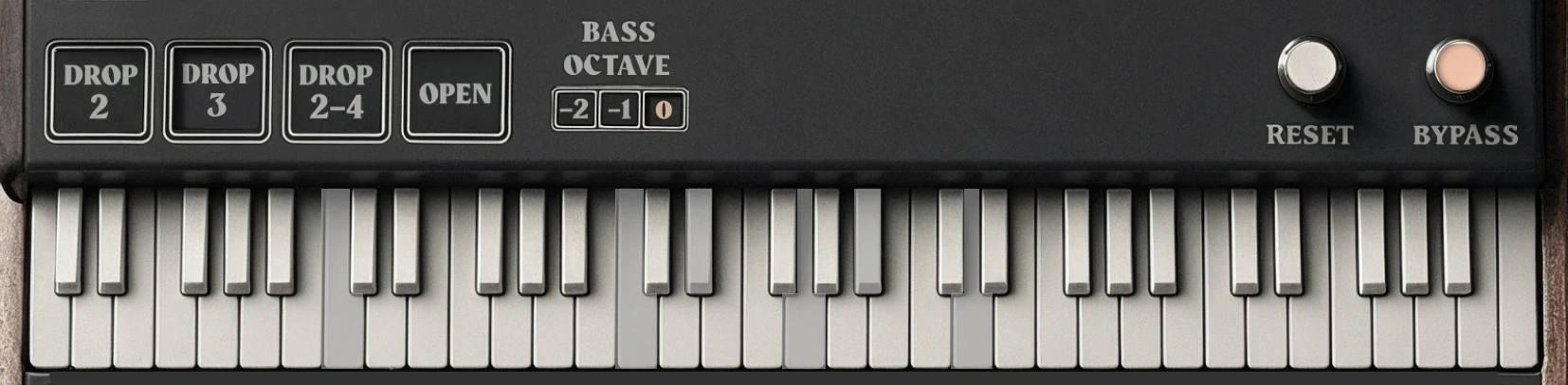
Four chord voicing presets are available. Use the controls below to enable a voicing preset and reshape incoming chords in real time.
FROM THE PLUG-IN

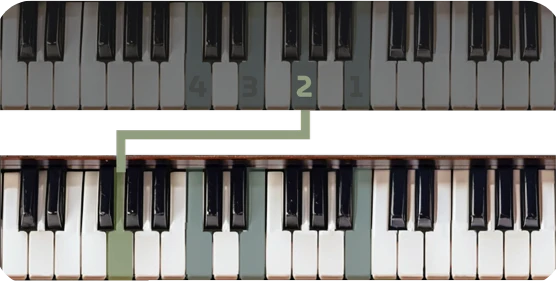
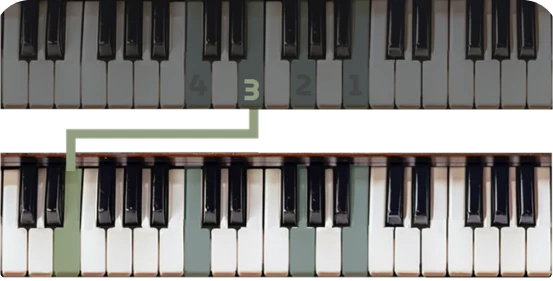
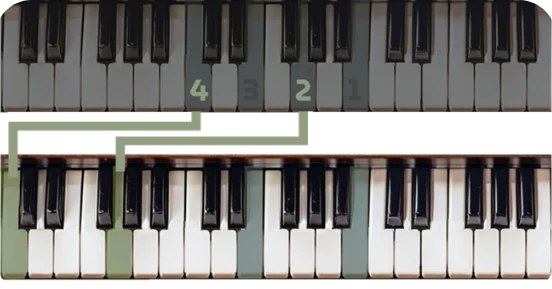

Chord Chameleon handles chord voicings and inversions simultaneously to streamline the process.
COMBINE TWO CONTROLS

INVERSION
+
VOICING
Default
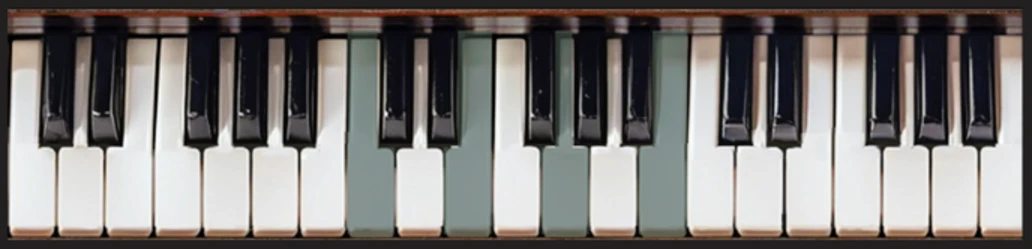
INVERT 0
VOICING OFF
Live Chord Input
1st Inversion
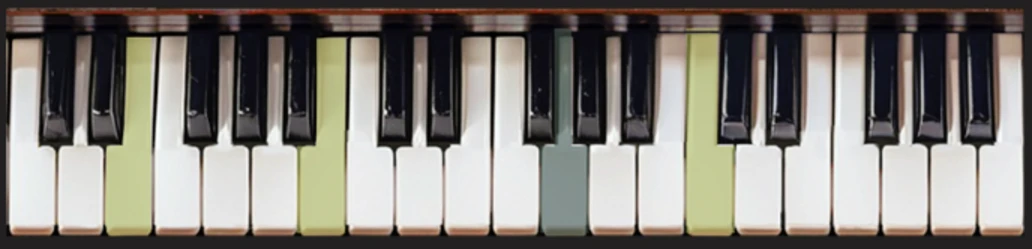
INVERT +1
DROP 2-4
2nd Inversion
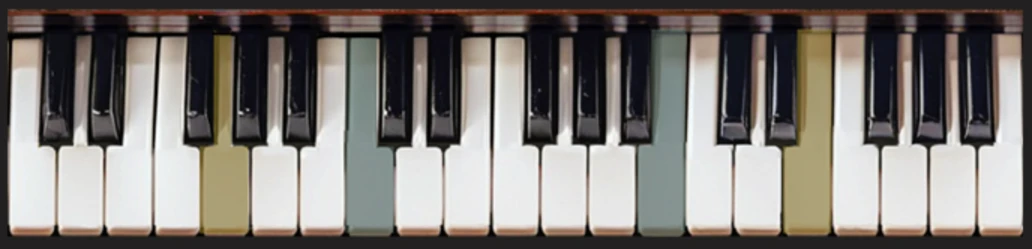
INVERT +2
DROP 2-4
3rd Inversion
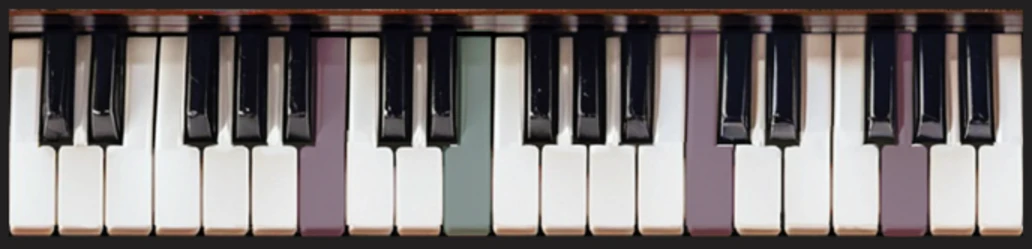
INVERT +3
DROP 2-4
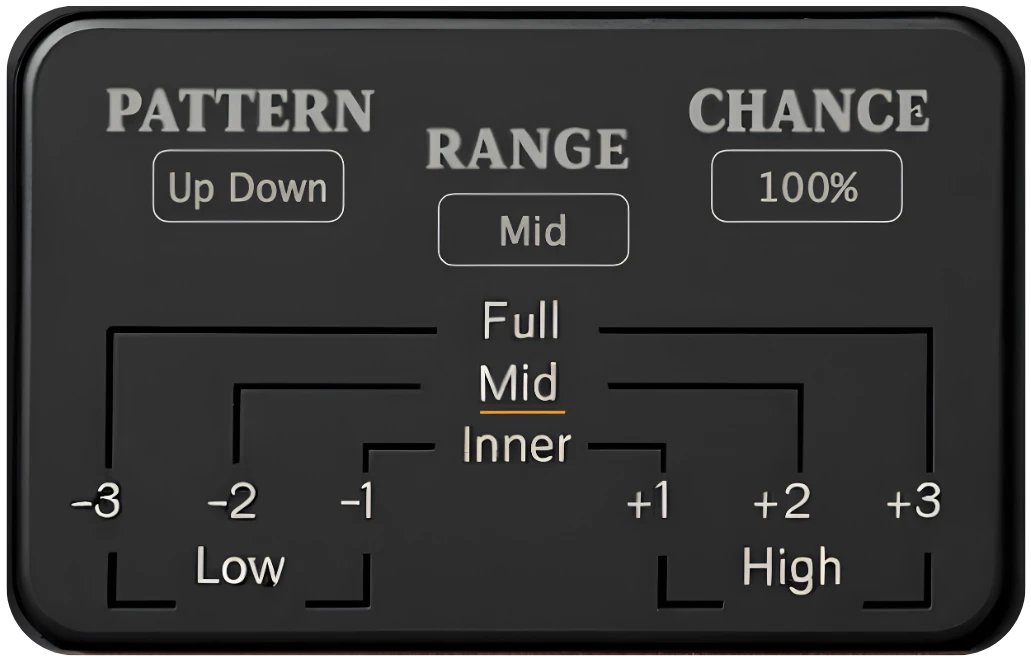
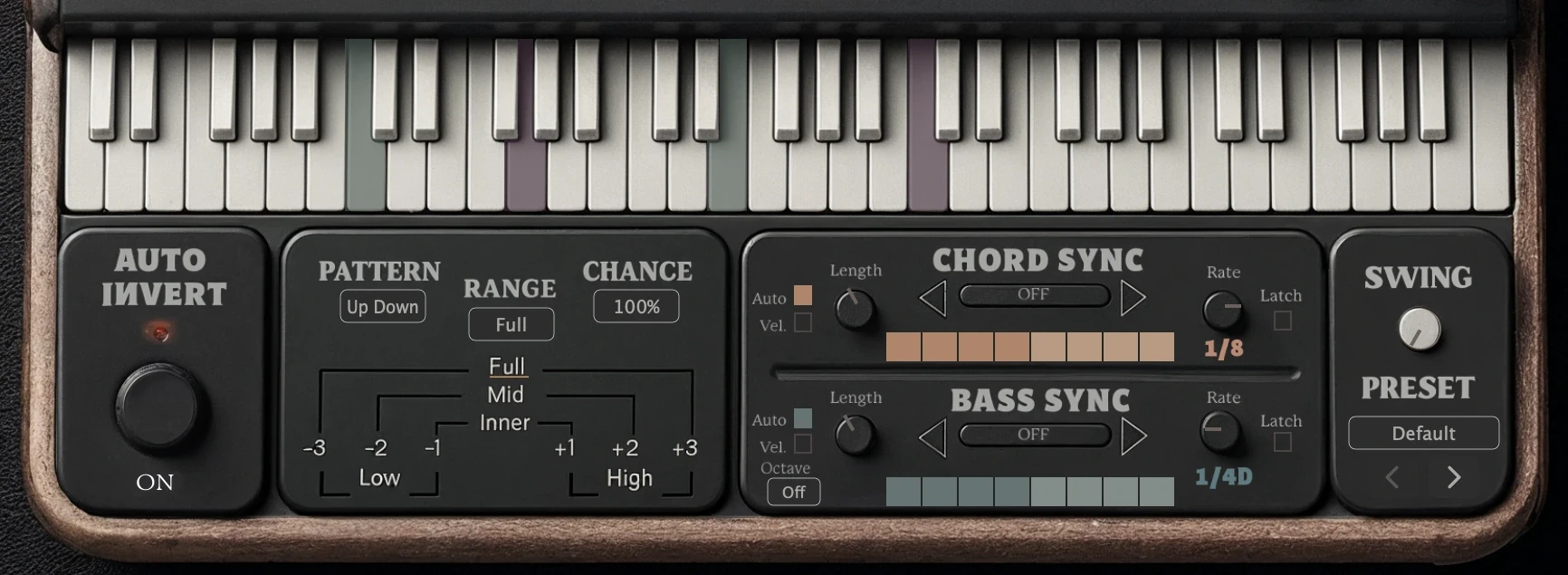
Auto Invert automatically reshapes chord inversions as you play through a progression.
Each time a chord is released, it preselects a new inversion setting for the next chord.

DIAGRAM
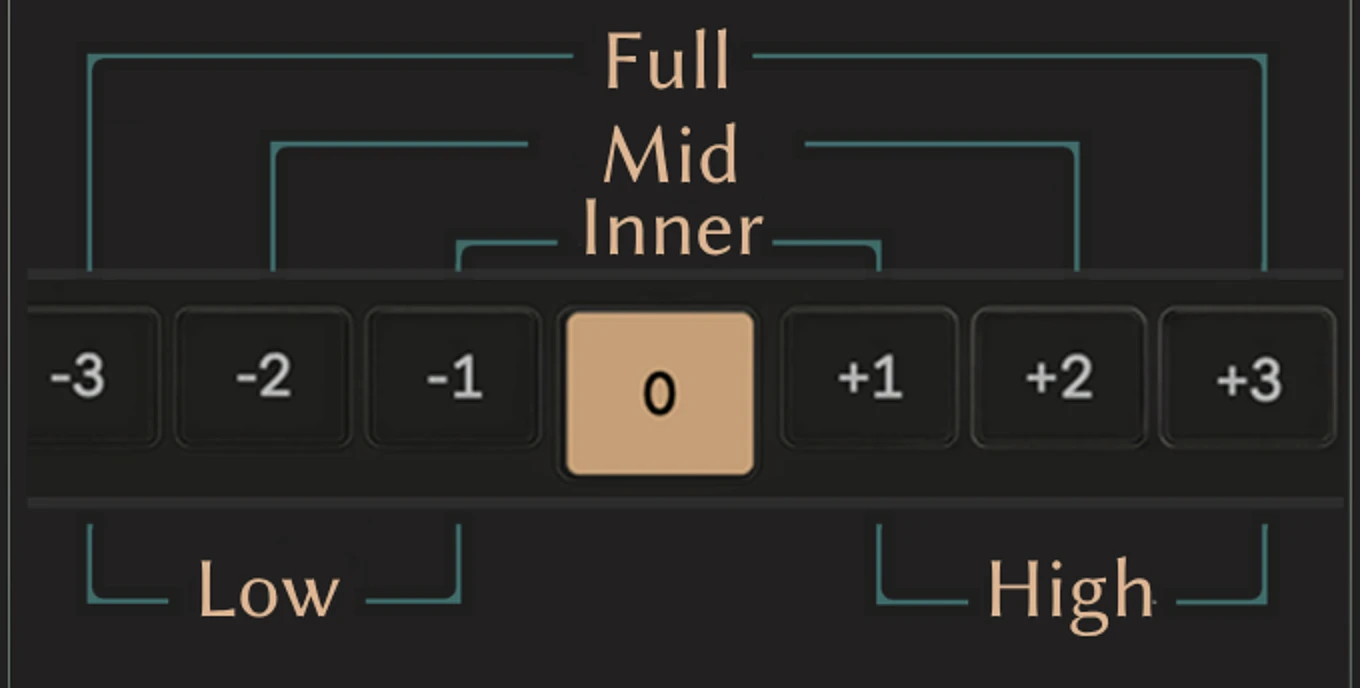
Range, in inversion settings
-3
-2
-1
0
+1
+2
+3
Full
-3 and +3
Mid
-2 and +2
Inner
-1 and +1
High
+1 and +3
Low
-3 and -1
Each Range cycles Auto Invert between the settings shown.
1
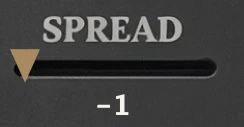
Spread Voicings
Adjusts chord spacing
-1=clusters chord
0=default (no spread)
+1=widens chord
FROM THE PLUG-IN
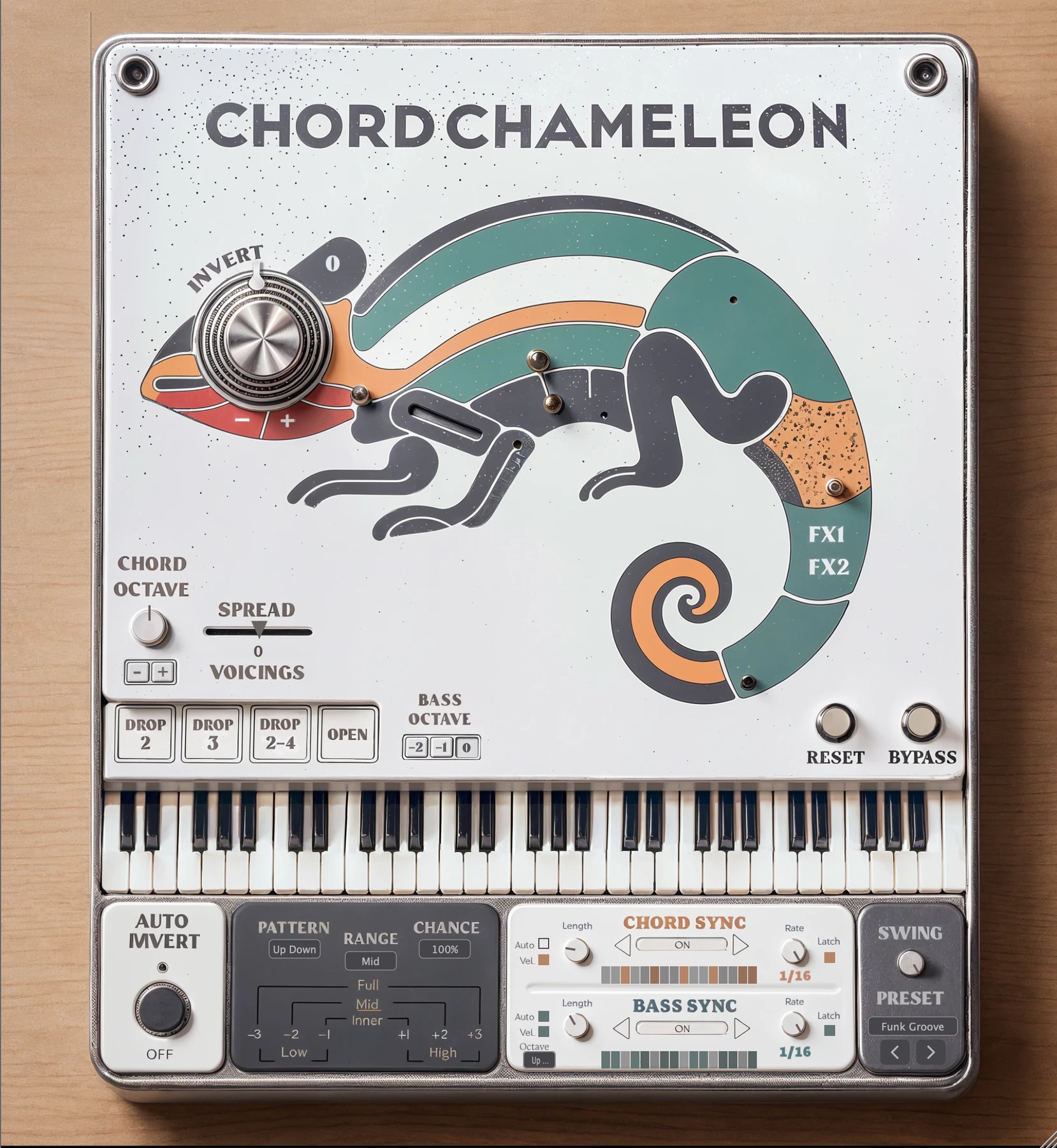
1
2
3
4
5
6
7
4
Pitch Effects
FX1 (Funk Stab): Press while holding notes for a quick, rhythmic pitch-bend stab
FX2 (Lofi Scoop): Turn on for upward pitch scoops.
1 · SPREAD VOICINGS
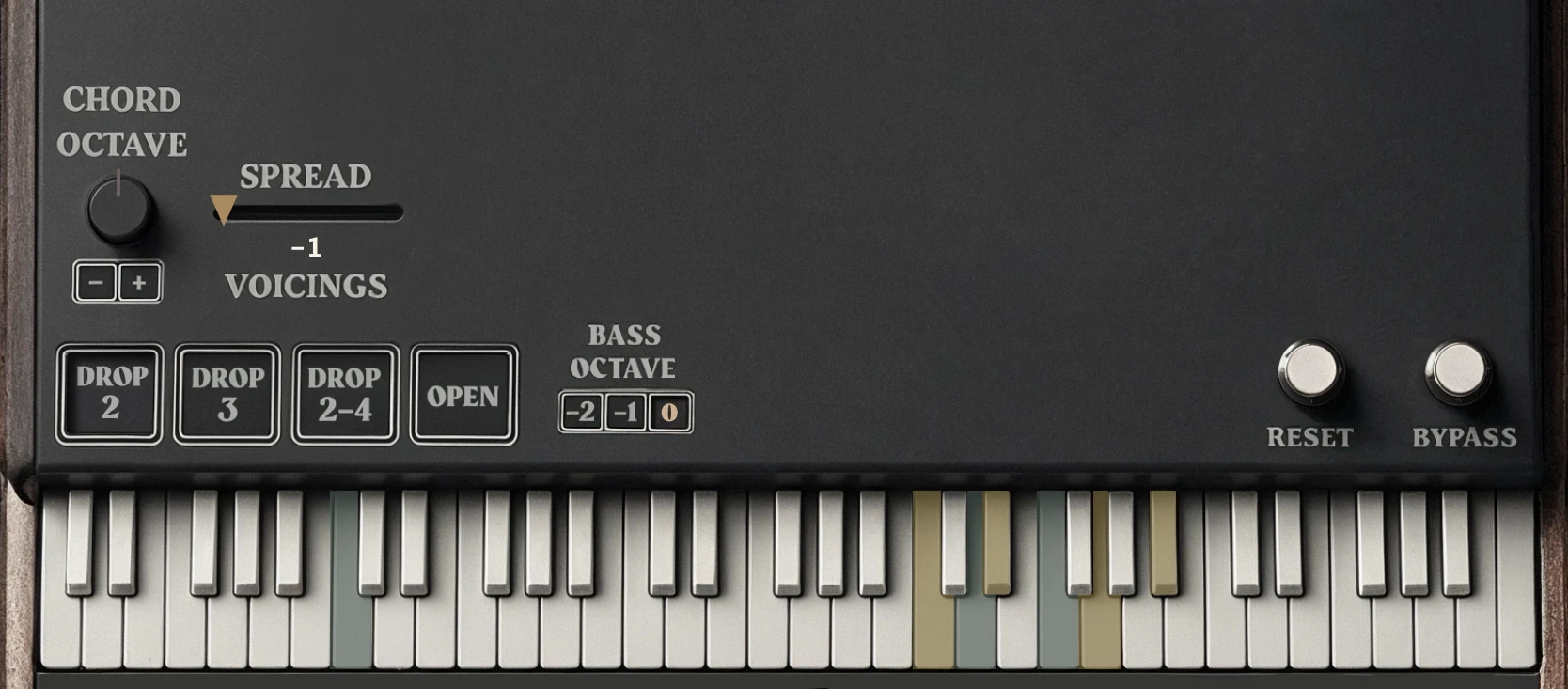
6 · BYPASS
Use the Appearance toggle in the upper-left corner of the interface to switch between Light and Dark themes.
Chord Chameleon opens in the Light Theme by default.
THE APPEARANCE TOGGLE
LIGHT · DEFAULT
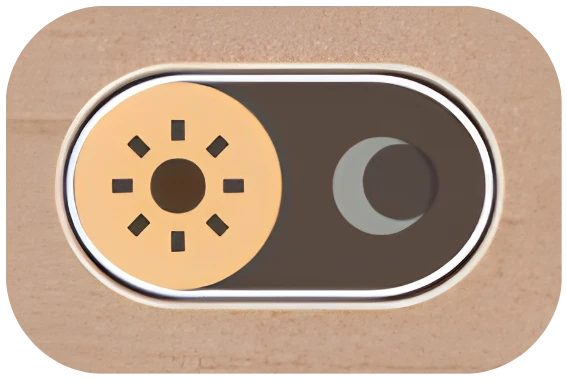
DARK
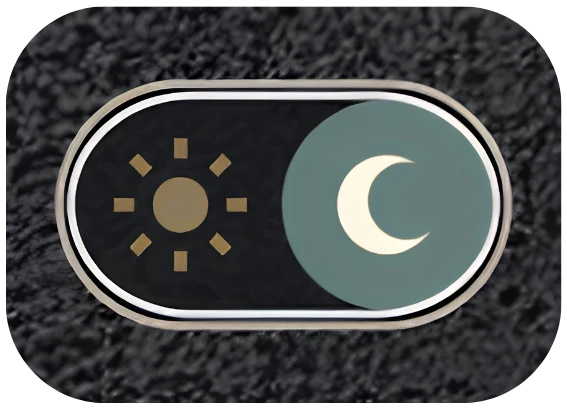
LIGHT & DARK THEMES
LIGHT - DEFAULT
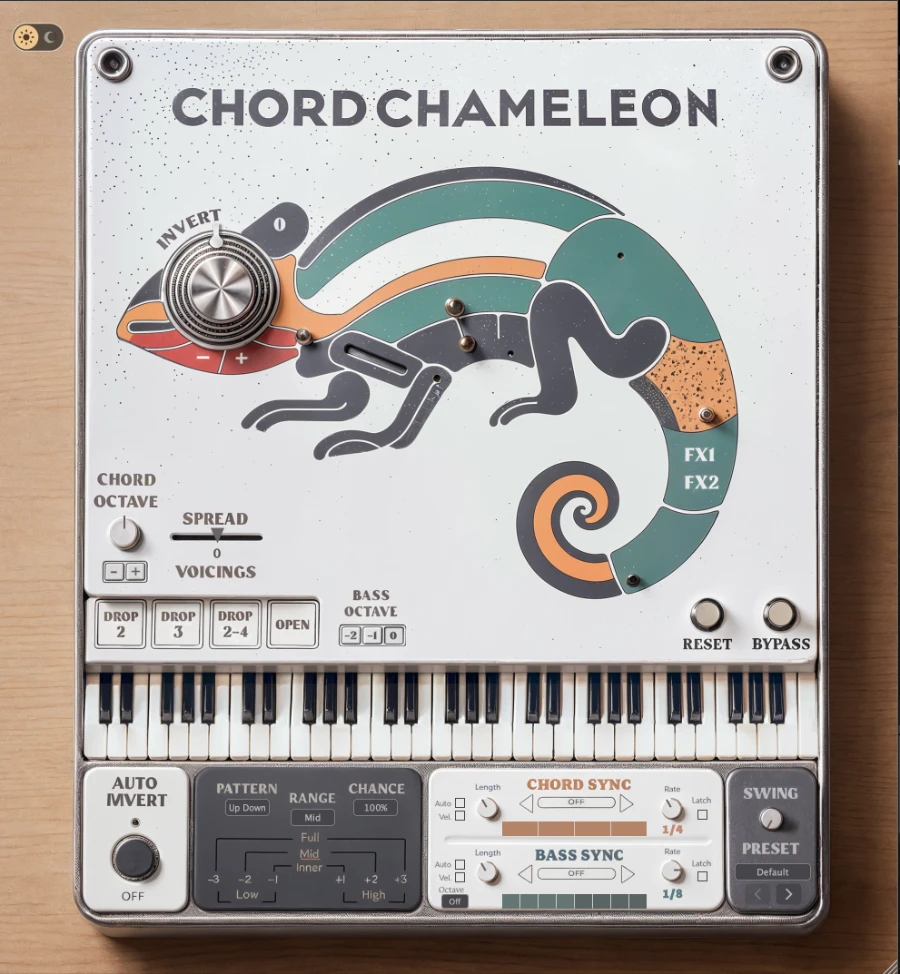
DARK